USZ Flow Manual
Read the Flow-Manual for USZ with insights about processes and features.
Written By Matthias (Admin)
Last updated 7 months ago

Welcome to the manual for USZ Flow portal! This manual provides a comprehensive guide to using the solution for order processing and document exchange. If you have any questions or require further assistance please contact us via support@ecosio.com.
Registration & Login
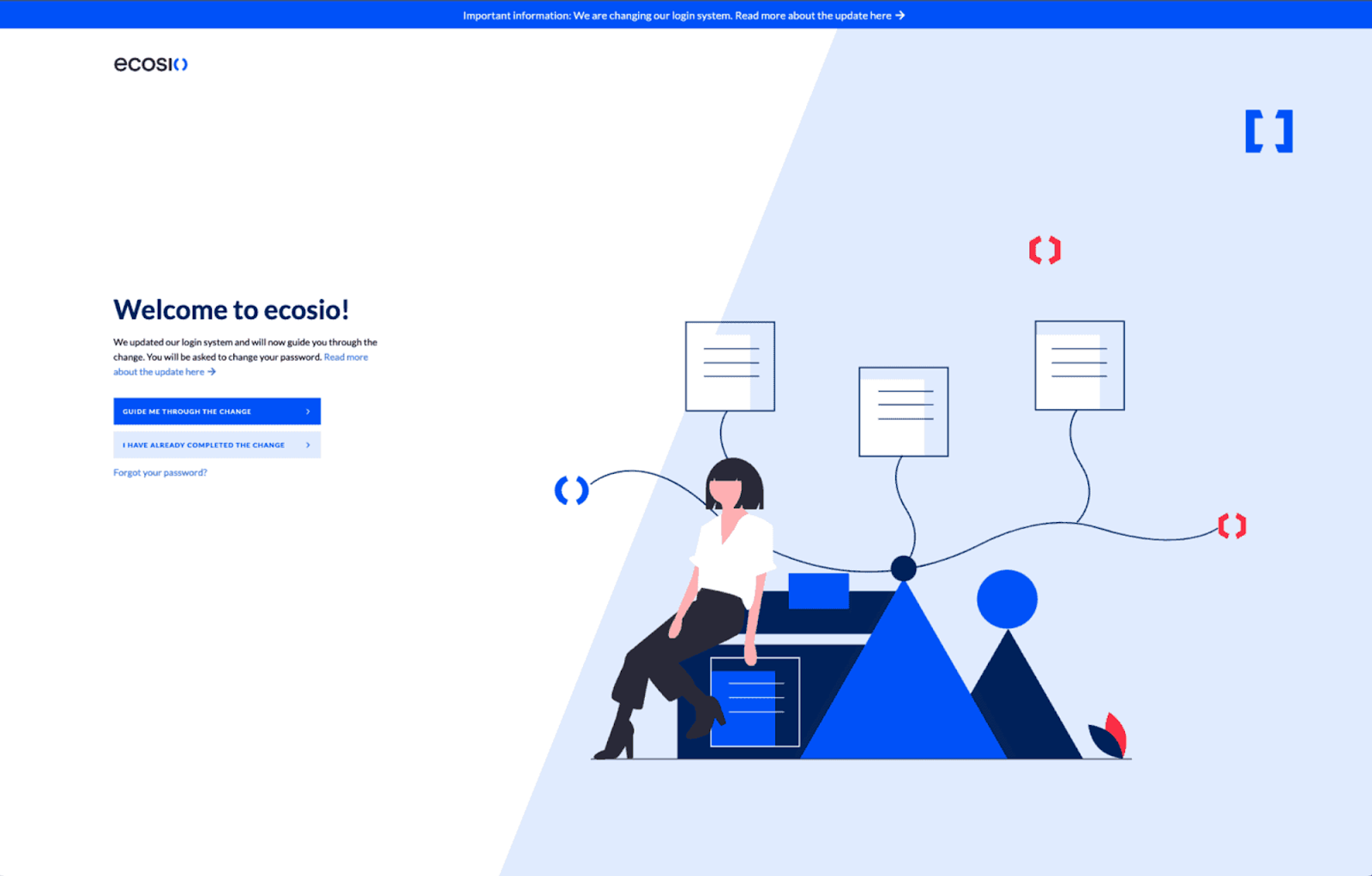
The access data must be created beforehand by the ecosio team. This is done after USZ sent you the first information about the webedi migration. Login into Flow is possible via the link https://app.ecosio.com. Please make sure that you are using one of these URLs to securely login.
If you should have but have not yet received any invitation via mail from eventnotifications-prod@ecosio.com, you can request it again via https://app.ecosio.com/account/resend-invite with the mail-address which USZ sent the information mails to. After logging in successfully, you will see the main functions on the left side of the page: Orders
Password Reset
If you lost your password or have problems with logging in, you can request a new password via https://app.ecosio.com/account/request-password-reset. You will receive a reset link per mail and then are able to reset the password. We recommend the use of a password manager and a secure password.
Process Overview
The Web EDI solution for USZ supports the following processes For orders:
Receiving orders
Sending order confirmations
Orders
To view your orders, click on the Orders menu item at the top left.

Viewing new orders
Click on the eye symbol on the right side of the row to go to the order process details and follow-up document creation for an order. The detailed view of an order is then displayed. Click on the green download button to download a PDF version of the order. Click on the New order confirmation button to create a confirmation of the respective order.

All documents can be viewed in detailed with a click on the respective document at the bottom of the page. There, the documents can also be downloaded as PDFs.
Confirming orders
When confirming an order, the header data can be adapted at the top right and the individual lines received can be corrected with regard to the quantity (e.g. decrease or increase), if less or more than specified in the order is delivered, the price and the delivery date. To confirm a line, click on the edit symbol. The warning symbol in the table indicates the mandatory entries for the relevant position. A new dialog window opens, in which the quantity can be corrected and the confirmation status can be set.

This can also be done in batch for multiple line items with the checkmarks on the left side and the batch action button at the right top of the table.
After all the mandatory fields have been confirmed, you can send the order confirmation by clicking on the green button. The green button remains deactivated as long as all mandatory fields have not been filled.

Modification Options
After an order has been received, you have the option to make adjustments in the order confirmation under certain conditions. Please note the following guidelines, which may vary depending on the type of your order and the products ordered:
Modification Options by Sector:
Investment:
Quantity: You can adjust the ordered quantity. However, an over-delivery beyond the originally ordered quantity is not possible.
Delivery Date: The planned delivery date can be changed.
Price: Price adjustments are not possible.
Food:
Quantity: A change in the ordered quantity is not possible.
Delivery Date (scheduleDate): A change in the planned delivery date is not possible.
Price: Price adjustments are not possible.
Medical:
Quantity: You can adjust the ordered quantity. However, an over-delivery beyond the originally ordered quantity is not possible.
Delivery Date: The planned delivery date can be changed.
Price: Price adjustments are not possible.
Special Notes for Express and In Night Orders:
Express Orders:
Override of Standard Rules: For Express orders, no changes at the item level (price, date, quantity) are permitted.
In Night Orders:
Override of Standard Rules: For In Night orders, no changes at the item level (price, date, quantity) are permitted.
Important Note: These guidelines are for your orientation. The exact modification options may vary in individual cases. Please check the options directly in your order confirmation in the portal. If you have any questions, our customer service will be happy to assist you.
Subsequently, you can finish the creation via the send button. Then, you are redirected to the order detail page access the document and create a corresponding dispatch advice.
Invite & Remove Users
Note: You need Admin rights for this functionality. Please contact your company admin regarding that matter!
You can invite all your colleagues directly in the settings, if you are an admin user. Either you click the invite button in the navigation menu at the right top or you go to the team settings and invite users via the invite button at the top right of the table.

In the Team setting you can also edit users of your team or deactivate them.
Switch
If you are using the Flow portal with multiple buyers like USZ, you can easily switch the company context in the middle of the navigation bar.
Feedback and Questions
If you have any questions regarding the processes, please read the manual or contact USZ. We are very happy to receive feedback about our platform and features. If you have specific wishes or ideas regarding additional features, please add that to the Feedback Portal which can be found in the lower left corner.